Time to Write

Sunday, February 16, 2014

My 2013 Thinglink Interactive Poster Projects for PLDT and Barrack Obama


John Mercado's hand sketch of Barrack Obama, made right after the reelection results


The PLDT Smart Foundation continues its relief efforts by sourcing and efficiently managing funds.


PLDT Home DSL's most effective sales generation campaign: the Great Payday Sale.


I came across the Thinglink site early last year while looking for ways to inventively share flat image content on different web assets. Thinglink allows one to place interactive touch buttons on different places of a single digital image, making it rich with links, "meta" descriptions, keyword-rich articles, and calls to action. Creation of an account and modification of images on Thinglink is very easy! All you're limited to is the use of your imagination. In the Barrack Obama poster, there are 5 touch buttons with different links:
  1. Barrack's eye area has a button that leads to his Twitter account.
  2. The pencil shaft has a button that used to link to the Multiply artwork of my brother John
  3. Barrack's right hand (which contracts into a "four" hand sign) leads to his reelection victory speech.
  4. The oval within the Four More logo leads to the official Barrack Obama downloads page. The webpage is laid out in a modern flat / metro design.
  5. The other link within the logo leads to the official US White House website, specifically the President's schedule.
The images can be embedded on blog posts and social networking channels such as Facebook and Twitter.

Monday, January 20, 2014

PLDT Landline Plus Prepaid SIM

I think I'm ready to try out the PLDT Landline Plus Prepaid SIM. I saw some social posts from renowned tech evangelist Marc Macanas of Tech Pinas and low-key mobile phone maestro Reggie Ramos a.k.a. DR on the Go regarding the PLDT Landline Plus Prepaid SIM. I'm considering getting one for work because as Reg mentioned, it'll make me (and other users) much more reachable. I currently don't have an office landline, so this will suffice for now for communicating with colleagues who are office-based and using the traditional wireline telephone unit.

https://www.facebook.com/DRontheGO 
DR on the Go PLDT Landline Plus Prepaid on his Facebook Timeline

Some things to note when using this. 1) Some SIMs do not have load when installed. There were some promos before that offered a small load amount for use in making local calls. Hope this will be conducted again when I purchase the prepaid SIM. 2) After installing the SIM / attaching the SIM into the mobile phone slot, he SIM has to be loaded with credit - either via a load card or PLDT / Smart Load retailers. This string has to be dialed to activate the SIM: #101*300 (for P300 load cards). 3) dial these numbers to check one's balance: 101-328 (you will be transferred to a customer care representative or #101-328 for menu.

Tech Pinas Community on Instagram

My "share of pocket" includes a Smart number (LTE coverage is better), a Globe Handyphone postpaid line (from the late 90s pa) and a SUN prepaid. I'll try a wireless landline soon. Additional tips will be posted once I get my prepaid kit.

Additional tips from my colleagues, Jhoycee Simbulan and David Aguilar:

Schedules of Prenatal Classes and Breastfeeding Workshop


I believe in the beauty of breastfeeding. Even though my wife and I had some "humps" in learning this while taking care of our newborn, we advocate this practice for those mothers who can!

Monday, January 13, 2014

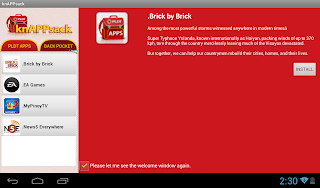
How to use the knAPPsack app on the Telpad

I just received a digital game voucher from PLDT Home that I can use to get 2 premium video game apps from EA Games! Although I'm a very casual gamer and games take up about an hour of my time per three days, it was still great for me to receive this digital content freebie! I used to pour in hours and hours into gaming when when I was younger.
Philippine Long Distance Telephone Company
The new PLDT Home logo for 2014. The strongest connections are at home.

Some of the EA game titles that I'm familiar with include the NBA Live series, FIFA, the SIMS and Need for Speed (which I'll definitely download to drive the Ford 'Stang in "Gotta Have It Green" paint and white racing stripes. Most of these used to hold precious disk space on my old PCs and Playstation console! Hahaha. Enough of the history narrative. Here's a short how-to on using the knAPPsack app on your Telpad. knAPPsack is a mobile app (Google Android OS) manager that's embedded/built into the PLDT Telpad. If you're a Telpad user, tap this to access the content and utility apps on your device. Use the search bar to locate knAPPsack or if you're the visual type, just look for the red knapsack/backpack icon with the PLDT logo!

how to install games on an android tablet
knAPPsack has a bright red backpack icon.
apps Google Android Jellybean Ice Cream Sandwich
Open the Telpad knAPPsack and you'll see this splash screen.

news games tv shows music educational apps
Click on the EA Games logo to install the EA app.
PLDT Home gift voucher codes PIN MIN app content
Click on the EA Games app on your app folder to launch free game download screen.
game code for SIMS need for speed tetris EA sports
Choose your preferred game title and enter the game voucher code.

Your game will download and install to the Telpad. Just select to launch, start playing and enjoy hours and hours of fun!

Troubleshooting tip
How to fix Telpad download
Busy pinwheel loading screen - how do I fix this?

Should this screen appear during your download, you just have to restart the app and make sure that the internet connection (WiFi) is strong and stable. I was trying to download a pdf while doing this, so I stopped that so that the tablet could focus on the game download / installation.
Another tip on how to do a screenshot on the Telpad. Press the power and volume down buttons at the same time. Don't just click both quickly, but keep pressing until you see 1) visual cue that the screen shot / screen capture was made and 2) a camera click / shutter sound. The snapshots will be saved in a screenshot folder within your files.

You can watch PBA games via the Home DSL PBA App which you can see install/launch via knAPPsack. The livestream is courtesy of Interaksyon.
If you're in a giving mode, you can also install/launch the Brick-by-Brick app. Brick-by-brick is a fund-raising and fund management effort by the Philippine Disaster Relief Foundation, while the app is an online donation platform for the restoration and reconstruction of churches, schools, health centers and houses in the Philippine provinces of Bohol, Cebu and Zamboanga.

Hope this how-to helps. Tell me about your Telpad story and what apps you've tried!

Saturday, December 21, 2013

Work at Home 'Pinas Seminar

 Last November 30, I was able to attend the seminar of Work at Home ' Pinas (WAHPinas) in Quezon City. "WAHPinas" is a group of enterprise / entrepreneur bloggers who are helping Filipinos to learn telecommuting and blogging then eventually earn. Here are some snapshots from the seminar.
Jon de Quiros, Head of PLDT HOME KaAsenso talks about the huge profit potential of "minigosysos" and micro-entrepreneurs.

The PLDT Home sales team featuring a Cyberya unit at Sangkalan restaurant. Cyberya is an internet-rental service PC unit that can be availed at any PLDT Sales and Service center.
Ron Villagonzalo of SAGABAY Outsourcing Services welcomes participants and raffles off some swag.
Raffy Pekson, Irene Enriquez and Ian Bacungan


Raffy Pekson talks about the importance of one's internet personality and the maximizing the internet.

Gian Viterbo of Gadget Pilipinas.


Friday, May 24, 2013

Spoonfeeding

Just left the PLDT Home office. 9PM evenings have been a regular thing. Work really starts after 5PM when meetings are done. Just wish agencies people were more supportive.
Had consecutive four hour meetings yesterday and today. Reflecting about numbers, outcomes and some ironies about being in such an enterprise. Off to bed for now for more reflection and writing down notes for the Masable blog project with Mannix Pabalan.
Turning off the TV and it's mindless drone.

Say cheese.

Saturday, May 4, 2013

practicing animated gifs


I've been meaning to learn more desktop publishing skills. It helps a lot in breaking work monotony (spreadsheets + corporate communications + liquidations) and hopefully builds the ambidexterity of my brain! Check these right/left brain ads out from Jeanie's blog to be inspired.


I read some articles earlier this year about free licensed Adobe CS2 software. I was able to secure legitimate copies of Creative Suite 2 versions Photoshop, Illustrator and InDesign for use at work. Yippie! My dream is to own (and use) a complete extended version, as well as be a certified Adobe expert from PCCI.


Crop it then pop it!
So in this day and age of  information overload and inexpensive (albeit wonky) internet connection, there's no reason not to be good in at least one thing. Youtube and apps provide so many crowd-sourced DIYs and lessons. So I tried learning to create the animated .gif (Compuserve Graphics Interchange Format) using snapshots of my nephew Noah. I sorted all the photos into a folder, opened them up in Photoshop CS2, made some adjustments and the cropped them so that the sizes of the images were uniform.Then, I opened up the animation panel and placed all the images in file, with each image having its own layer. 

Then select each image to correspond to its sequence in the animated gif. You can set the amount of time the image appears before it moves on to the next one.  Choose Save for Web, then choose .gif as your file format. Once saved, open the .gif in a browser to see the final product.  Good luck!